
Workflows
Kent workflows are reusable process graphs for agent work. A workflow defines where a task starts, which agent roles work on it, which choices those agents can make, when humans approve a step, how parallel branches join, and where automation stops.
Workflows are linked to projects. Tasks live in projects, then move through the linked workflow as Kent starts sessions, manages worktrees, collects transition outputs, asks questions, waits for approvals, and records activity.
Backlog -> Plan -> Implement -> Review -> Done ^ | | v +----- Needs changes1. Choose How To Build
Section titled “1. Choose How To Build”Ask Kent To Create It
Section titled “Ask Kent To Create It”The easiest path is to ask Kent to model your existing work process as a workflow. Kent agents can inspect your repo, agent roles, skills, slash commands, project conventions, and past sessions, then create the reusable workflow definition for you. After that, use Kent Desktop to review and adjust the graph.
Example prompt:
Use the Kent workflows skill. Study my existing Claude Code/Codex data: agent configurations, slash commands, skills, and session logs that represent my real workflow. Turn that work process into an automated Kent workflow for this project.
Include the roles, nodes, transitions, prompts, parameters, context modes, approvals, and completion modes you recommend. Link it to this project, set it as the default if it is ready, and tell me what I should review in the desktop workflow editor.
This path works best when you describe the real decision points in your process: when implementation is done, what a review must return, when QA is required, what counts as shipped, and where you want explicit approval.
Build Or Edit In Kent Desktop
Section titled “Build Or Edit In Kent Desktop”Use Kent Desktop when you want direct control over the workflow definition.
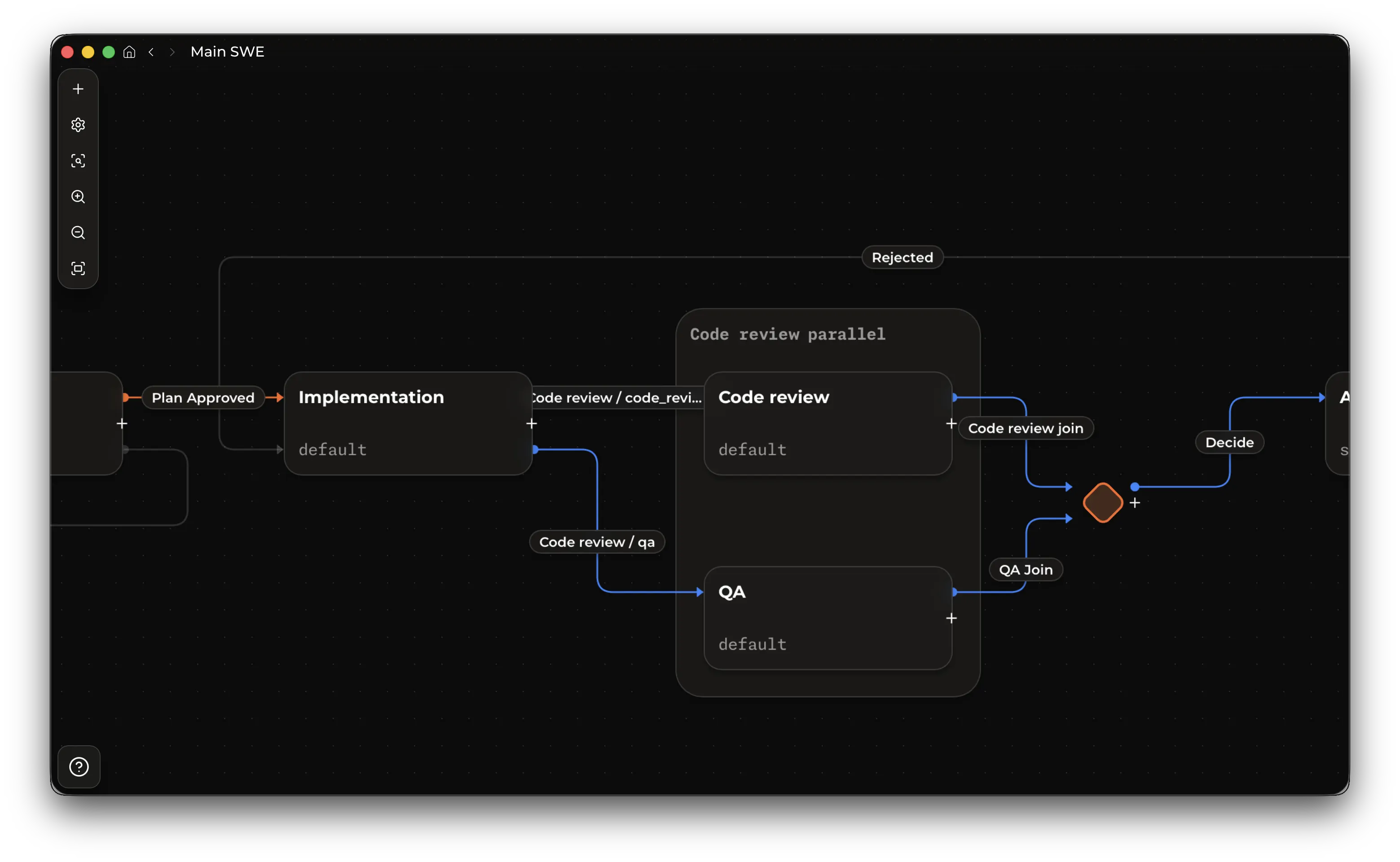
From a project, create or link a workflow, open the workflow editor, then edit the graph. Agent-generated workflows follow the same path: review the workflow, fix validation issues, adjust prompts, save, and run tasks from the project board.
2. Set Up Agent Roles
Section titled “2. Set Up Agent Roles”Workflow Agent Nodes run existing Kent subagent roles. Each Agent Node requires a concrete configured fallback Assignee, and that fallback role must effectively enable ask_question; see Tools for tool configuration.
Roles hidden from workflow-agent delegation remain valid Node Assignees.
Eligible serial transitions into Agent Nodes can select an Assignee from roles explicitly configured with agent_callable = true; Kent force-enables ask_question for that transition-selected execution, and workflow_subagent does not restrict the selection.
[subagents.implementer]description = "Implements approved tasks and leaves reviewable changes."model = "gpt-5.6-sol"thinking_level = "high"system_prompt_file = "agents/implementer.md"agent_callable = false # prevent ordinary Kent sessions from delegating to this role
[subagents.reviewer]description = "Reviews changes and returns actionable findings."model = "gpt-5.6-sol"thinking_level = "xhigh"system_prompt_file = "agents/reviewer.md"workflow_subagent = false # prevent workflow agents from delegating to this role
See Headless runs for the role configuration reference.
3. Understand The Graph
Section titled “3. Understand The Graph”Workflow, Project, And Task
Section titled “Workflow, Project, And Task”- A workflow is the reusable graph definition.
- A project links workflows, provides workspaces, and owns the task board.
- A task is the durable unit of work that moves through one workflow.
- A task directly owns its Current Nodes: normally one node, or several while a transition fans out into parallel branches. Current Nodes have no independent identity.
- An Agent Current Node can bind to a retained Kent Session. A Script Current Node has no Session and retains only the state needed to resume its script.
Creating a task puts it in Backlog. Starting the task applies the workflow’s start transition and creates its first executable Current Node. Leaving a node removes its execution state; retained Sessions remain available to the task.
Nodes are workflow states. Visible executable and terminal nodes become board columns.
| Node kind | Use |
|---|---|
| Start / Backlog | Where tasks rest after creation. Each workflow has one start node. |
| Agent | Runs a Kent agent using the selected subagent role. |
| Script | Executes a local script on the Kent server and parses stdout as workflow completion JSON. |
| Join | Waits for parallel branches and aggregates their parameters. Joins are graph plumbing, not board columns. |
| Terminal | A sink where automation stops, commonly Done. |
Keep node keys stable and machine-friendly, such as plan, implement, review, needs_changes, and done. Keys are used by agents, prompts, and validation, so prefer lower-case letters, numbers, and underscores over display labels with spaces.
Transitions
Section titled “Transitions”A transition is a choice an agent can make when it completes a node. A transition has a human label, a stable key, and a model-facing description that tells the source agent when to choose it.
In graph terms, one selectable transition is a transition group, and each branch is an edge to a target node.
Each transition contains one or more branches:
- A normal transition has one branch to one target node.
- A fan-out transition has multiple branches and starts parallel work.
- A branch into an agent node carries that target agent’s prompt, context mode, approval setting, and parameters.
Use transition descriptions for choice criteria. For example, a Review node might offer done with “Choose when the implementation is correct and ready to ship” and needs_changes with “Choose when implementation changes are required.”
Parallelism, Node Groups, And Joins
Section titled “Parallelism, Node Groups, And Joins”Use a node group when one source agent should fan out into parallel branches. Parallel branches are ordinary workflow nodes, not subtasks: one task temporarily owns one Current Node per branch until the branches reach the group’s join.
For example, an SWE workflow can send implementation output to Code Review and QA at the same time, join both results, then continue to an Approval Gate node that decides whether to ship or send the task back for changes.
Implement | +--> Code Review --+ | | +--> QA -----------+--> Join -> | Approval Script | -> DoneTo create a new parallel group, right-click the node and select “Group”. Drag additional agent nodes into the group to add branches.
Wire the group as one fan-out transition from the upstream source to every grouped branch. Each branch then routes to the group’s Join node, and the Join routes to the next node in the workflow. When the editor can infer this topology, it creates or preserves the fan-out and join wiring for you.
Joins wait for all required branches. Use the Join to aggregate branch parameters, then put synthesis, release-note writing, approval, or final decision-making in a normal agent/script node after the join.
4. Configure Agent Work
Section titled “4. Configure Agent Work”Prompts
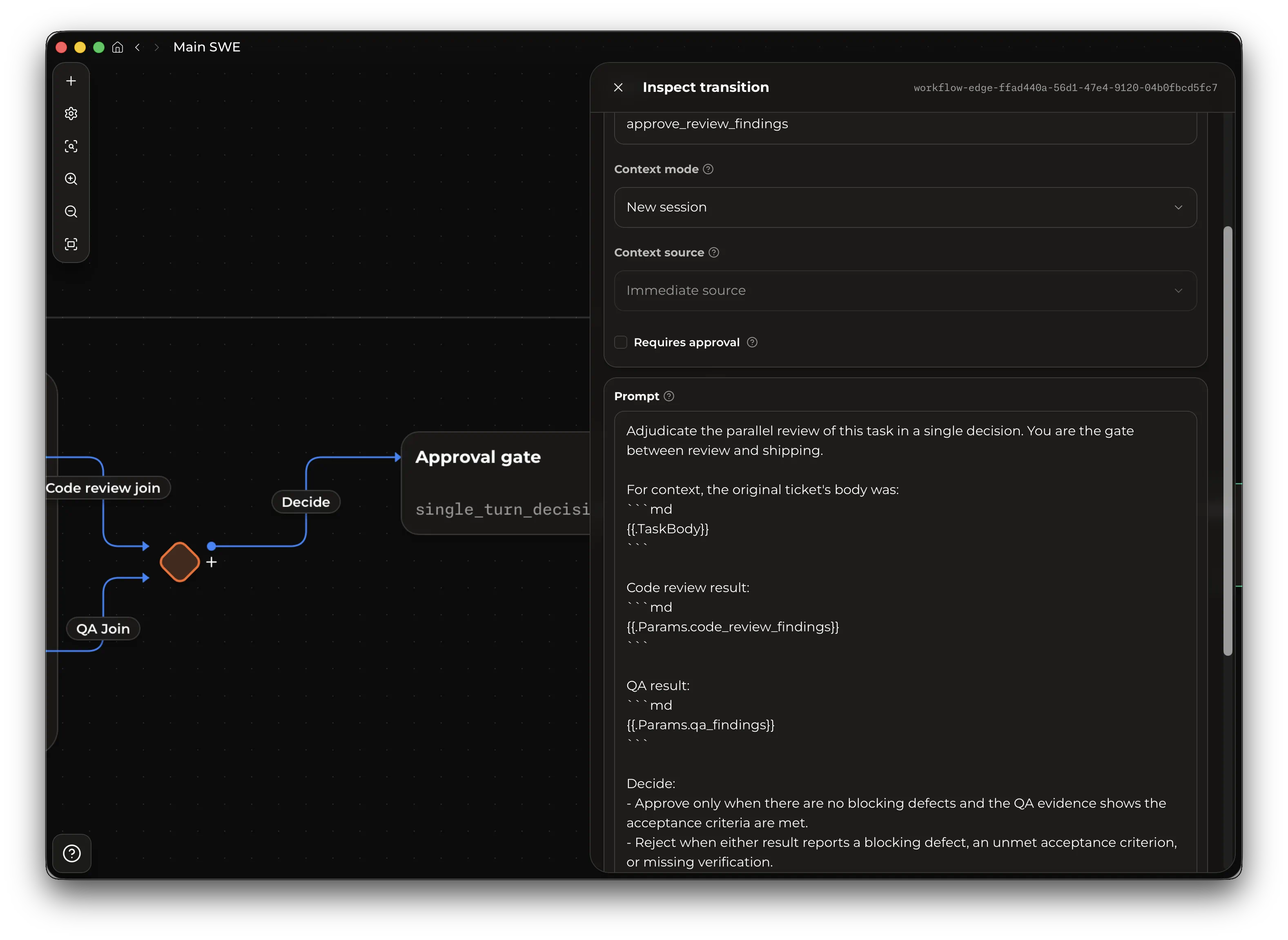
Section titled “Prompts”Agent prompts live on transitions into agent nodes. The transition prompt is the work order the target agent receives when that branch starts.
Prompts can use task fields:
Implement {{.TaskShortId}}: {{.TaskTitle}}
Task details:{{.TaskBody}}
And parameter values produced by earlier transitions:
Address these review findings:{{.Params.findings}}Or the previous transition commentary (default output all agents usually provide when they finish the task):
Source transition notes:{{.Params.commentary}}To reference a guaranteed earlier transition, qualify the parameter with that transition key:
Use the approved plan:{{.Params.planning.plan_file_path}}A previous-transition parameter is valid only when every path to the prompt passes through that transition. If a value might not exist because of branching, declare a local parameter on the transition that needs it.
Script Nodes
Section titled “Script Nodes”Use a Script node when a workflow step should run a deterministic local executable instead of an agent. Script nodes can be used anywhere an agent node can be used in the workflow graph.
Set the script path on the script node. All paths are resolved on the server machine. Relative paths resolve against the task’s execution root.
The node script receiver JSON as stdin:
{ "plan_file": "docs/plan.md", "_kent": { "task_id": "task_123", "node_id": "node_456", "transition_branch_key": "release_notes" }}Top-level properties are incoming workflow parameter values. _kent contains only the Task and Node identity, plus transition_branch_key when the Current Node belongs to a parallel branch.
Stdout must be the workflow completion JSON. Stderr is diagnostics only. For example:
{ "transition": "done", "commentary": "Generated release notes.", "release_notes_path": "docs/release-notes.md"}If the script exits non-zero, writes invalid completion JSON, omits required parameters, or becomes unavailable, Kent interrupts the Current Node. Resume reruns the script with the same incoming parameter values and the current workflow script path and transition contracts.
Parameters
Section titled “Parameters”Parameters are required string outputs from the source agent. They are how one node hands structured facts to the next branch.
For example, a Review to Needs Changes transition can require:
| Parameter | Description |
|---|---|
findings |
Concrete required implementation changes, including file paths when useful. |
verification |
Checks the reviewer ran and the results. |
Declare parameters on the transition whose source agent can produce them. In fan-out transitions, matching parameter keys must have matching descriptions because they represent one shared output contract.
For each transition, the source agent must provide the declared parameters before it can complete that branch. The target agent receives those values where the transition prompt references them with placeholders such as {{.Params.findings}}.
Transition Assignee And Thinking Selection
Section titled “Transition Assignee And Thinking Selection”Each eligible serial Agent or Script transition into an Agent Node can independently enable Let the previous node choose for the target Assignee and Let the previous node select thinking level for thinking. A disabled selector uses the target Agent Node’s configured fallback Assignee or configured thinking; Fan-Out transitions do not support either selector.
Transition-selected Assignees must be explicitly agent-callable roles. With no eligible role, Assignee selection is unavailable; with one eligible role, Kent applies it automatically and hides the Assignee Parameter; with several eligible roles, the source must provide the selected role as an ordinary required value. Thinking selection similarly hides its value when the applicable model catalog has zero or one supported level; with several finite levels it requires a value, while an open catalog accepts a nonblank custom value after a custom description is authored.
Enabled selectors own Protected Parameters in the transition’s ordinary ordered Parameters list. Assignee uses the default key agent_role, and thinking uses thinking_level; operators may edit each key, description, and order, but cannot delete an enabled Protected Parameter. Disabling a selector or making it inapplicable hides its Protected Parameter while retaining its saved settings, and separate incoming transitions keep independent selector state.
Context Modes
Section titled “Context Modes”Context mode controls how the target agent starts its session. It applies to transitions into agent nodes; transitions into joins or terminal nodes do not start agent sessions.
| Mode | Best for | Trade-offs |
|---|---|---|
| New session | Independent work, QA, code review, security review, release note drafting. | Lowest starting context and cleanest role boundary. The prompt and parameters must contain the context the target needs. |
| Compact and continue session | A large phase handing off to another role or another direction. | Adds a handoff step and starts a new session from a summary. Good when full conversation history is unnecessary but a clean summary matters. |
| Continue session | Tight loops and direct follow-up work with retained context. | Preserves conversation history and prompt-cache continuity. Retained target Sessions preserve their Assignee; a target-owned previous-session-or-new transition can select an Assignee when it creates a new Session. |
Continuation modes also have a context source:
- Immediate source uses the session from the node that just completed.
- Selected node uses a previous node that is guaranteed to have run before this transition.
- Previous target uses the latest retained Session associated with this edge’s target node. Use it for loops where the workflow returns to a node and should continue that node’s prior Session.
- Previous target, or new session uses the latest retained Session associated with this edge’s target node when one exists. Use it for re-review loops where the first pass starts fresh and later passes continue the target’s prior Session.
Use new_session or compact_and_continue_session when a transition should establish its selected Assignee and thinking at a fresh Session boundary. Continue Session exposes Assignee selection only when Previous session from this target, or new session resolves to a new Session; retained target Sessions preserve their materialized Assignee, while eligible transitions may change thinking without rotating cache lineage.
Human Approval
Section titled “Human Approval”A transition can require approval. When the source agent chooses that transition, the task waits before target branches start. Use approvals for plan acceptance, destructive operations, release steps, or any point where you want to inspect the agent’s proposed direction. For fan-out transitions, approval gates the whole selected transition before any branch starts.
Completion Modes
Section titled “Completion Modes”Completion mode controls how an agent node reports that it has finished and which transition it selected. Only agent nodes have completion modes; Start, Join, and Terminal nodes do not execute agent loops.
| Mode | Use | Cache and cost notes |
|---|---|---|
| Inherit global default | Use the workflow completion mode from configuration. | Same behavior as the resolved configured mode. |
| Auto | Best default for most nodes. Kent picks the effective mode from the workflow shape, provider support, and shell availability. | Usually gives the safest cache/cost trade-off automatically. |
| Structured output | Provider-native structured output. Use it when the provider supports strict structured responses and the node is not part of a continue_session chain. |
Lowest-friction on capable providers, but prevents the Current Node from starting when unsupported and fully invalidates cache on continued sessions. |
| Tool call | Dedicated completion tool. Use it for providers without structured-output support. | Reliable tool-driven completion, but fully invalidates cache on continued sessions. |
| Shell command | Completion through the agent’s shell environment. Prefer this for continue_session chains. |
Requires the shell tool for the target role and gives the agent shell access, but avoids completion-contract cache invalidation. |
| Unstructured output | Best-effort raw JSON final answer. Use only when you need continue_session and cannot use shell command. |
Most fragile mode. It avoids dynamic completion metadata, but depends on the model following exact final-answer instructions. |
Auto chooses unstructured output if the runtime has no shell available; otherwise it chooses shell command when the workflow contains a continue_session transition, structured output on capable providers, and tool call as the remaining fallback.
Cache And Cost Behavior
Section titled “Cache And Cost Behavior”Workflow design affects prompt-cache continuity and token spend:
continue_sessiongives the strongest cache continuity because it keeps the retained Session, conversation history, and provider cache; retained target Sessions preserve their Assignee, and a thinking change does not rotate the cache lineage.new_sessionstarts clean, establishes the transition’s selected or fallback Assignee and thinking, and does not invalidate another Session’s cache. The prompt and Parameters must carry enough context because the target agent may spend tokens re-orienting in the workspace.compact_and_continue_sessionasks the previous agent for a handoff, then starts a fresh Session from that summary with the transition’s selected or fallback Assignee and thinking. It frees context, adds handoff cost, and leaves the previous Session cache behind.
The editor shows draft validation and execution validation. Draft validation catches graph-shape problems such as duplicate keys, invalid prompt placeholders, bad parameter contracts, and incomplete node groups. Execution validation catches automation blockers such as missing prompts, missing roles, invalid start shape, unreachable nodes, and non-terminal nodes that cannot reach a terminal node. A workflow can remain linked to a project while execution validation fails: drafts, Backlog tasks, and comments remain available, but task start and manual movement from Backlog into executable work are blocked until every Agent Node fallback role enables ask_question.
6. Manage Tasks
Section titled “6. Manage Tasks”Graph edits can be blocked when active tasks would be affected. Prefer cleaning the board from in progress task when editing workflows.
Create tasks from a project board. Each task belongs to one project and one linked workflow. The project supplies workspaces and execution environment; the workflow supplies the board shape and automation path.
New tasks start in Backlog and follow the project’s default workflow unless you choose another linked workflow.
Choose the source workspace before starting automation. Agents run in the environment where the Kent server runs, so that environment must have the repository, toolchains, credentials, and local files the workflow needs.
A workflow Session may start, interrupt, resume, approve, or manually move another Task. It cannot target its own Task; Kent derives that ownership from the invoking Session.
Current Work, Sessions, And Activity
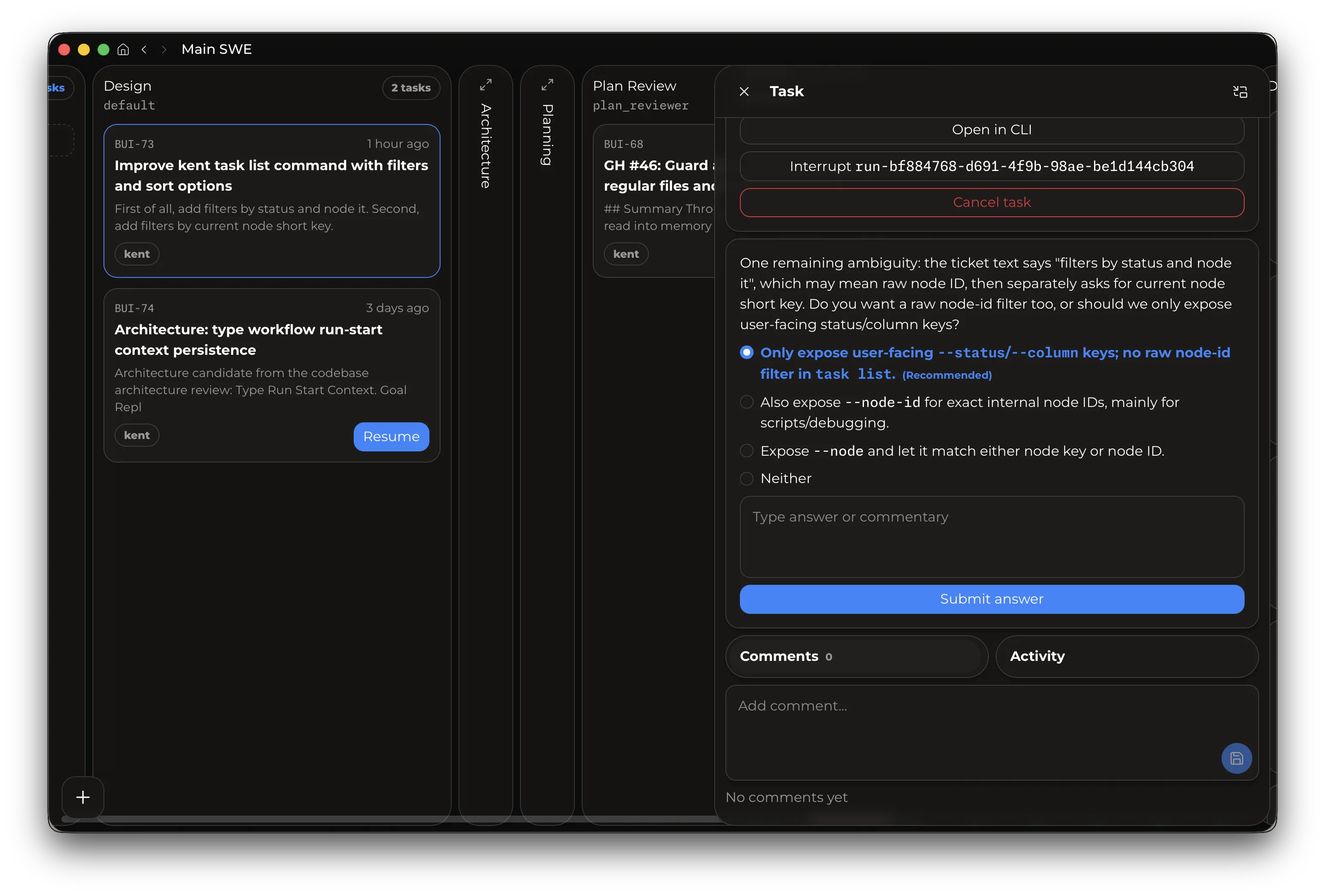
Section titled “Current Work, Sessions, And Activity”Task detail shows the task’s Current Nodes, each Agent Current Node’s effective Assignee and thinking when present, and retained Session count. kent task show reports the same effective fields; non-Agent Current Nodes omit them. A retained Session can outlive the Current Node that used it, so it remains available through the Session picker after the workflow moves on.
Interrupt stops exact live work. Interrupting a Task stops every live Agent Session and Script for that Task; interrupting a Session selects one live Agent Session. Kent waits for the selected work to stop before returning. Resume waits for the prior scope to retire, resolves the latest workflow definition, then resumes the retained Session or current Script.
Delete permanently removes a quiescent Task. Interrupt preserves the task for Resume.
Task Activity is an infinite-scroll stream of durable comments and retained Session creation. It records a Session as Session started.
Project Labels
Section titled “Project Labels”A project owns a shared catalog of up to 100 reusable labels across its linked workflows. You can create and rename labels from the label chooser; deleting a label removes it from every task in the project.
Assign labels atomically when creating a task or update them immediately from task detail. Board cards show assigned labels as neutral chips and summarize labels that do not fit.
On the board, a named Label row cycles neutral → included → excluded. An included condition requires the Label; an excluded condition requires its absence. --label-match any matches when any included or excluded condition is true, while all requires every condition. No labels remains a binary filter for tasks without assignments and is mutually exclusive with named conditions. The selected filter persists locally for each project and desktop installation across workflows, navigation, and relaunches.
In Desktop, the route-scoped Unblocked chip shows Tasks with zero unsatisfied direct dependencies across the board. It combines with the active Labels filter, and its selection resets when you leave or change the board.
Desktop boards sort each column by Updated, Created, Labels, or Short ID. The default is Updated descending; sorting is applied per column after active Labels and Unblocked filters, and Labels follow the Project catalog order.
The CLI manages the same Project catalog with kent task label create, list, move, rename, and delete. move accepts exactly one placement: first, last, before another label, or after another label. add and remove update a task’s memberships atomically; task create --label assigns existing labels in the creation transaction. kent task list accepts repeatable --label included conditions and --not-label excluded conditions. Label selectors are literal: canonical UUIDv4 text selects identity, while every other value is trimmed and matched against the complete case-insensitive Unicode name. --unlabeled cannot be combined with either selector flag or an explicit match mode.
CLI Workflow And Task Scope
Section titled “CLI Workflow And Task Scope”CLI workflow selectors are bare canonical UUIDv4 values. Copy them from kent workflow list or kent workflow inspect --summary.
kent workflow list --project .workflow_uuid="<uuid-from-workflow-list>"kent workflow inspect "$workflow_uuid" --summaryTransition selector controls
Section titled “Transition selector controls”Edge creation and updates expose independent target Assignee and thinking selectors. Enabling a selector initializes its Protected Parameter when needed; --target-assignee-param and --target-thinking-param customize the protected key and description, including an empty description.
kent workflow edge add "$workflow_uuid" --from review --transition implement --edge-key implement --to implement --context new_session \ --assignee-selection previous_node --target-assignee-param 'agent_role=Role for the next node' \ --thinking-selection previous_node --target-thinking-param 'thinking_level='kent workflow edge update "$workflow_uuid" <edge-id> --assignee-selection configured --thinking-selection configuredRepeatable --param and --clear-params edit ordinary Parameters only; they retain Protected Parameters and cannot convert or delete them. Node commands continue to edit the required fallback with --agent; selector flags belong to Edge commands.
Workflow deletion cascades through the workflow definition, Project links, and Tasks. Run the command without --confirm to inspect the impact, then repeat it with --confirm; Kent deletes nothing if the impact changes or blockers remain.
kent workflow delete "$workflow_uuid"kent workflow delete "$workflow_uuid" --confirmProject-filtered workflow listing returns the default first, followed by project activity and name. Task creation uses an explicit linked --workflow when supplied, otherwise the project default, or the lone linked workflow when no default exists. Several links without a default require an explicit selector.
kent task create --project . --title "Fix flaky tests" --body "Investigate and repair the failure."kent task create --project . --workflow "$workflow_uuid" --title "Fix flaky tests" --body "Investigate and repair the failure."Task listing is always project-scoped. Omitting --workflow lists tasks across every workflow linked to the project; supplying it narrows the result. Project-wide rows omit workflow columns. --column and --sort column require explicit workflow narrowing.
kent task list --project .kent task list --project . --workflow "$workflow_uuid" --column reviewUse --unblocked to select Tasks with no unsatisfied direct dependencies or --blocked to select Tasks with at least one unsatisfied direct dependency. The flags are mutually exclusive and apply across the selected workflow scope.
kent task list --project . --unblockedkent task list --project . --workflow "$workflow_uuid" --blockedTask sorting accepts created, updated, status, column, title, labels, and short_id selectors with explicit asc or desc directions. A command may provide up to seven distinct selectors in one or repeated --sort flags.
Task Dependencies
Section titled “Task Dependencies”Task dependencies connect a Blocker Task to a Blocked Task within one Project.
A Task is unblocked when every direct Blocker Task is done; a Task with no direct dependencies is also unblocked.
kent task dep add --project . --blocker <blocker-task> --blocked <blocked-task>kent task dep remove --project . --blocker <blocker-task> --blocked <blocked-task>kent task dep list --project . <task>kent task dep list --project . <task> --direction blocksDependency lists include both direct directions unless --direction blocks or
--direction blocked-by selects one. Add and remove are idempotent; plain
mutation output is done, and --json returns the typed outcome and both Task
identities.
Starting a Task or moving it into executable work reports unsatisfied direct
Blocker Tasks before execution-target selection. Rerun the same command with
--ignore-dependencies to acknowledge that one operation:
kent task start <task> --ignore-dependencieskent task move <task> <target-node-id> --ignore-dependenciesSearch Tasks
Section titled “Search Tasks”Literal Search matches case-insensitive Task Short ID substrings plus Task titles and bodies. Complete Short IDs and canonical numeric suffixes rank before partial Short ID matches, while --include-comments adds Task Comments.
Raw --fts5 Search remains limited to the public title, body, and comment columns.
kent task search "retry policy"kent task search "retry policy" --project . --status backlog,runningRun kent task search --help for matching modes, filters, result pagination, output contracts, and validation behavior.
Manually Move A Task
Section titled “Manually Move A Task”Manual Move evaluates the destination through the workflow server before changing the task. Agent and Script destinations use a usable incoming Transition even when the destination is not connected to the task’s Current Node. A single usable Transition is selected automatically; multiple choices require --transition with the authored Transition key. Fan-out Transitions move the whole Task-wide parallel group and create every branch.
kent task move <task> <target-node-id> --transition <transition-key> \ --values-json '{"plan":{"summary":"Approved plan"}}'kent task move <task> <target-node-id> --values-file ./move-values.jsonValues use nested Node-key/output-name identity so equal output names from different Nodes remain distinct. Direct Start and Terminal moves omit --transition and values. A destination already Current is a successful no-op. Waiting Questions, lifecycle conflicts, unavailable context Sessions, invalid workflows, unsupported destinations, and unusable incoming Transitions are rejected before mutation with a typed reason.
Desktop shows the server’s Transition choices and required values, including exposed Assignee and thinking Protected Parameters and resolved values that can be edited. Manual Move applies the same selector rules as automatic completion: hidden zero/one-option or retained-Session values are omitted or ignored, and supplied values are validated before the target is created. When Execution Target selection is required, the Manual Move dialog closes before that selection; canceling or failing target selection leaves live work unchanged. After target selection succeeds, confirming a move interrupts live Agent and Script work across the task’s current parallel group, then applies the selected serial or fan-out Transition. If interruption succeeds but final workflow revalidation fails, the task remains interrupted and the move error is reported.
Complete Work From The CLI
Section titled “Complete Work From The CLI”An Agent completing its own workflow Session runs kent task complete with its transition result. Kent resolves that completion through the Session identity supplied to the agent.
Human-forced completion requires exactly one selector: a Session, or a Task with one unambiguous idle executable Current Node.
kent task complete --force --session <session-id> --transition donekent task complete --force --task <task-id-or-short-id> --project . --transition doneCompletion has no Current Node selector. Use --json or --json-file to submit a JSON transition result instead of individual completion fields.
Choose The Execution Target
Section titled “Choose The Execution Target”The workflow’s execution-target policy chooses where executable agent and script nodes run:
| Policy | Execution root |
|---|---|
| Ask when execution starts | Select one of the four concrete targets when an unlocked task first reaches executable work. |
| No managed worktree | The task’s source workspace. This supports non-Git workspaces and tracks source-workspace changes. |
| Source HEAD | A managed task worktree created from the source repository’s current commit. |
| Repository default branch | A managed task worktree created from the default branch configured by local remote-HEAD metadata. |
| Custom Git revision | A managed task worktree created from any branch, tag, or commit that resolves to a commit. |
New workflows ask when execution starts. Kent Desktop offers all four concrete targets when selection is required, preselects the repository default branch, and uses the same dialog when a configured Git target cannot be resolved.
Target selection occurs on the first executable start, manual move, or approval. The task locks the selected mode and managed requested/resolved commit facts only when that initiating action succeeds. Later workflow nodes reuse the locked target; a locked target cannot be replaced with another mode.
Configure a workflow policy or select a concrete target when starting, approving, or manually moving a task:
kent workflow update <uuid> --execution-target ask-on-first-executionkent workflow update <uuid> --execution-target none|head|default-branch|ref:<revision>
kent task start <task> --execution-target none|head|default-branch|ref:<revision>kent task approve <transition-id> --execution-target none|head|default-branch|ref:<revision>kent task move <task> <target-node-id> --execution-target none|head|default-branch|ref:<revision>
These task actions never prompt. Their override applies only to an unlocked task and does not edit the workflow. If selection is required, rerun the same action with one concrete selector. kent task show reports the source workspace and, after lock, the durable target mode, requested revision, resolved revision, resolved commit, and recorded managed-worktree path when present. It also reports every exact current session and script target. Task detail does not perform live Git branch discovery; inspect the worktree when branch identity is needed.
More about worktrees on the Worktree page.